
Select, move, resize, rotate and draw
Use the canvas confidently with snapping, transform handles and editable vector paths.
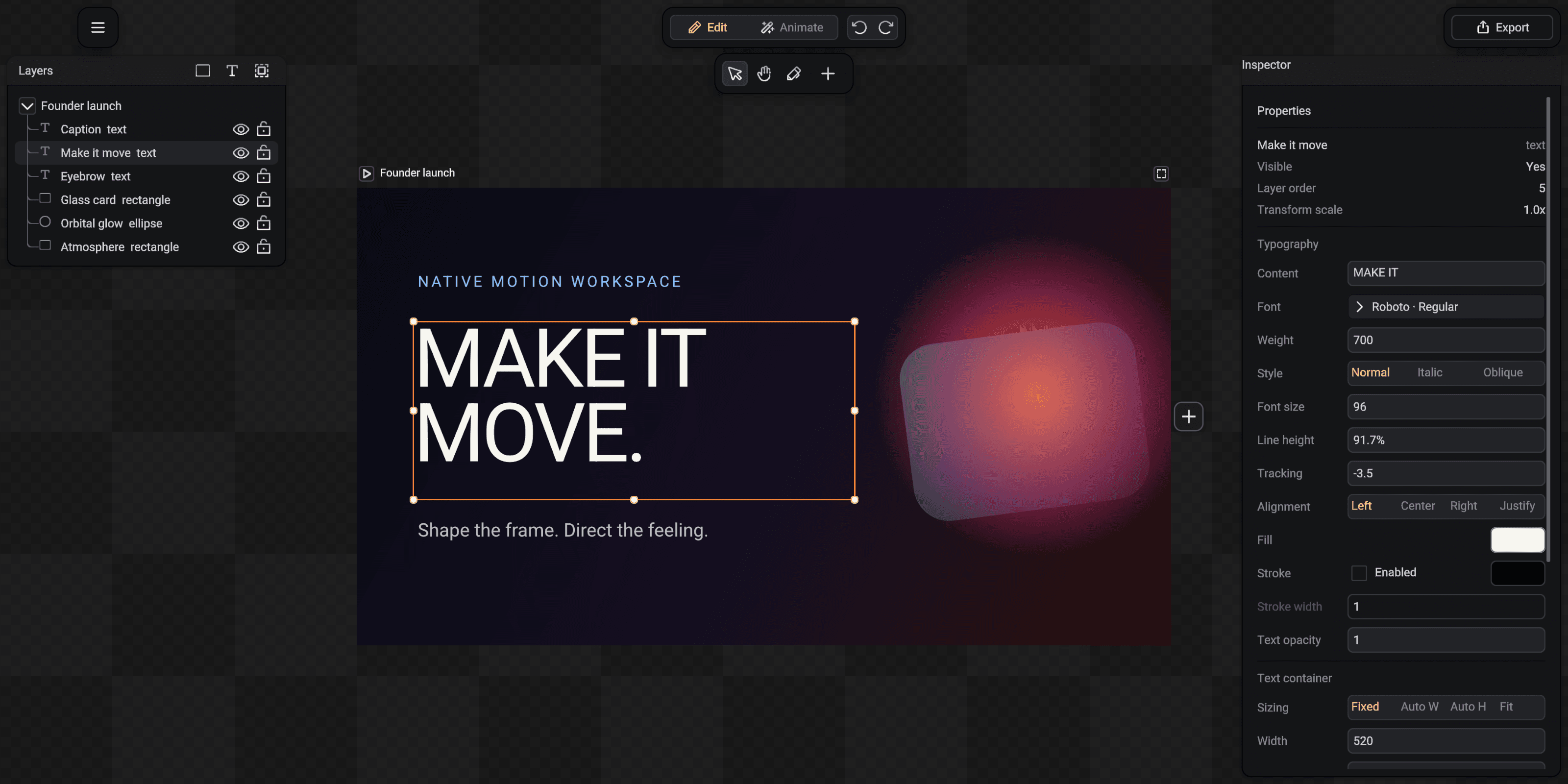
Canvas interaction changes authored document values through normal history, so every move, resize and path edit can be undone.
Choose the right tool
Select chooses and transforms objects. Hand pans the workspace without moving content. Pen creates vector paths. Add opens the primitive and image menu.
In 3D focus mode the same toolbar also exposes Move, Rotate and Scale gizmo modes for spatial objects.
Move with snapping
Drag a selected object to move it. SceneLoft snaps edges and centers to the project border and nearby objects, including useful equal-gap relationships, and paints guides for the active snap.
Hold Control while dragging to bypass snapping temporarily. Release the drag to commit one history step instead of a long list of tiny changes.
Resize and rotate from the bounds
Drag a visible handle to scale or resize. Move just outside a corner until the pointer changes to the rotation cursor, then drag around the selection pivot.
Hold Shift during rotation to snap to 15 degree steps. Enter exact transform values in the Inspector when a numerical angle or size matters.
Draw and revise a path
Choose Pen, click for straight anchors and drag while placing an anchor to create direction handles. Close the contour by returning to the first point.
Return to Select and double-click the path to edit it. Drag anchor points to reshape the contour and drag direction handles to change curve angles without recreating the path.
Keep the essential shortcuts nearby
SceneLoft follows familiar editor conventions on macOS and other desktop systems.
| Action | macOS | Windows / Linux |
|---|---|---|
| Undo / redo | Cmd + Z / Shift + Cmd + Z | Ctrl + Z / Shift + Ctrl + Z |
| Duplicate | Cmd + D | Ctrl + D |
| Group / ungroup | Cmd + G / Shift + Cmd + G | Ctrl + G / Shift + Ctrl + G |
| Move forward / backward | Cmd + ] / Cmd + [ | Ctrl + ] / Ctrl + [ |
| Move front / back | Shift + Cmd + ] / [ | Shift + Ctrl + ] / [ |
| Bypass move snapping | Control while dragging | Control while dragging |
| Snap rotation | Shift while rotating | Shift while rotating |