
Export the right file for the job
Choose a target, preset, resolution, time range and format with clear compatibility boundaries.
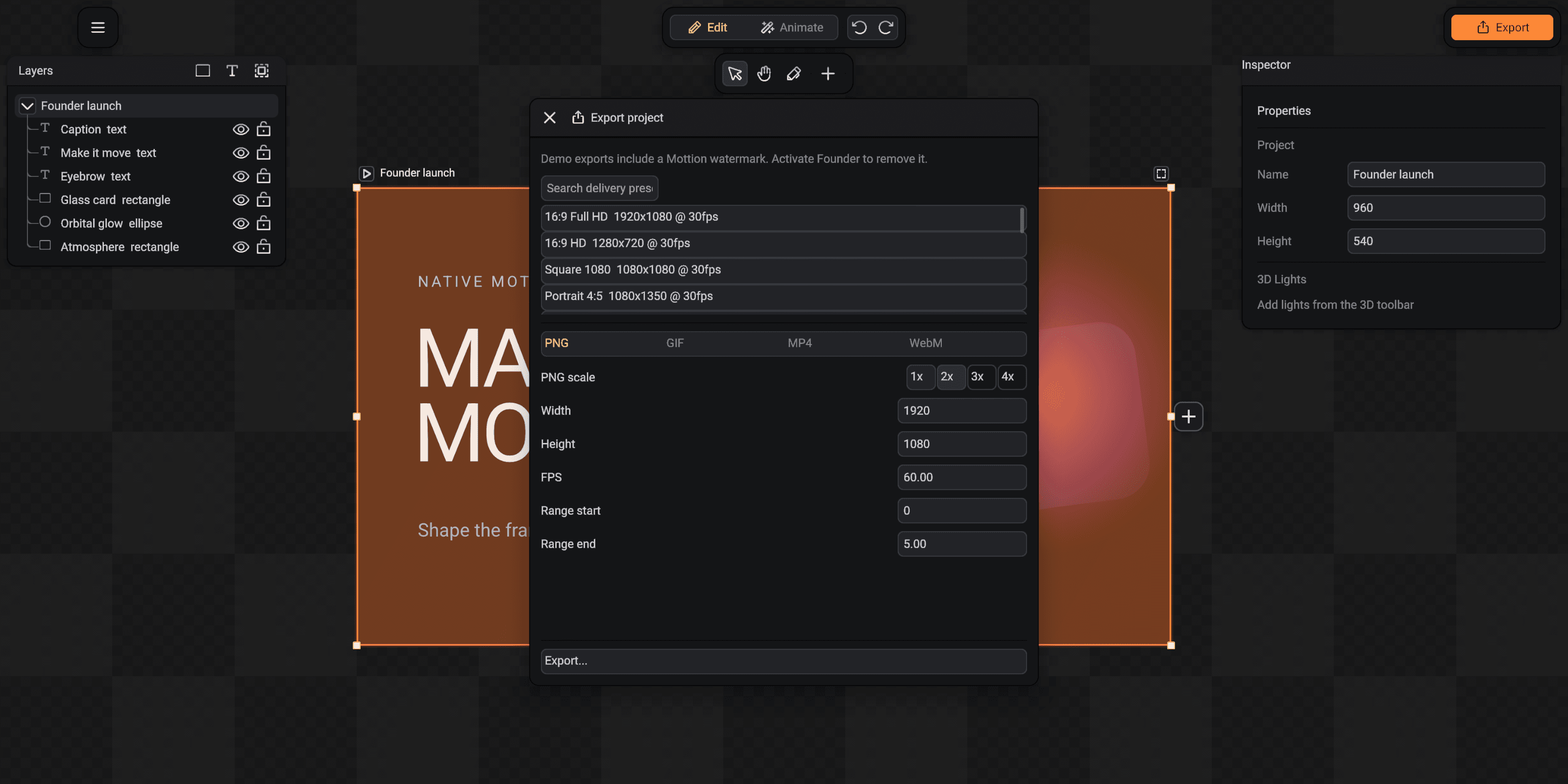
Export is selection-aware. Choose a project for one shot or a composition for a linked sequence before opening the movable, resizable Export window.
Open the export window
Select a project or composition, then press Export in the top-right. The shortcut is Shift + Cmd + E on macOS or Shift + Ctrl + E elsewhere. The button is disabled when no valid delivery target is selected.
The window title says Export project or Export composition. Drag its title bar to move it and drag any border or corner to resize it.
- 1Searchable delivery presets
- 2Output format
- 3Dimensions, rate and range
Start from a delivery preset
Search the preset list and choose a common landscape, portrait, square or social destination. The preset fills width, height, FPS and the intended range policy.
For PNG, choose 1x through 4x scale when the resulting dimensions remain inside the edition and renderer limits. Width and height remain directly editable.
Choose the format
Use this matrix as the stable delivery rule. Vector formats can report compatibility warnings when a document contains effects outside their supported subset.
| Format | Motion | Alpha | Best use |
|---|---|---|---|
| PNG | Still image | Full | Thumbnails, stills and frame delivery |
| GIF | Yes | Binary | Short loops and broad compatibility |
| MP4 / H.264 | Yes | No | Social, review and ordinary playback |
| MOV / ProRes 4444 | Yes | Full | Post-production and transparent overlays |
| WebM / VP9 | Yes | Full | Web motion and transparent overlays |
| SVG | Static sample | Vector | Editable vector handoff |
| Lottie JSON | Supported subset | Vector | App and web vector animation |
Export a composition
Select the composition to export the complete linked project chain. Composition delivery supports GIF, MP4, ProRes 4444 and WebM because these formats represent continuous time.
PNG still, SVG and Lottie are project targets. Select one project when you need one of those outputs.
Set time and quality
Range start and end define the delivered interval, while FPS controls how many frames are sampled each second. Check project duration and playback before starting a long render.
Projects containing 3D can enable Ray traced rendering for raster or video formats. Samples trade render time for cleaner noise; Denoise helps low-sample animation output.
Know the edition boundary
Demo export is usable but includes a SceneLoft watermark and a 1080p raster or video limit. Founder removes that watermark and unlocks the paid delivery capabilities shown by the current license.
The export window only shows formats available to the active edition, so the visible format control is the final authority for that installation.