
Layers, groups and visual order
Keep complex artwork readable with nesting, locking, visibility and deterministic paint order.
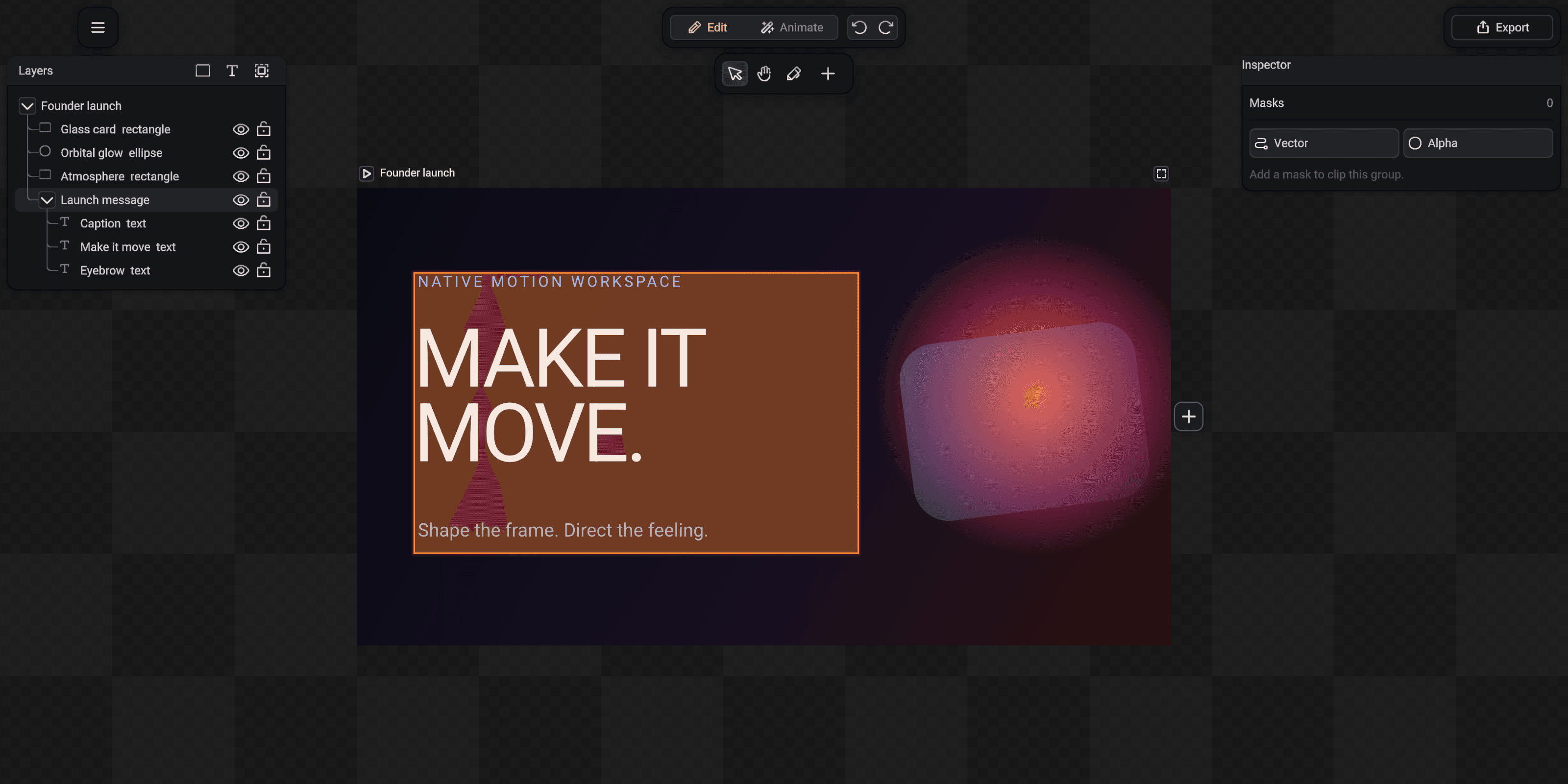
The Layers dock is the structure of the selected project, not a second visual list. Its nesting and order determine selection scope, inherited group behavior and what paints on top.
Read a layer row
The left icon identifies the layer type. The name is editable, the eye controls visibility and the lock prevents authoring changes. A disclosure arrow expands a project or group.
Layers later in paint order appear above earlier content. Drag a row to move it, or use the Arrange commands in the top-left menu for front, back, forward and backward changes.
- 1Project root
- 2Expanded group
- 3Visibility and lock
Create a group
Select two or more sibling layers, then choose Edit and Arrange, Group. The shortcut is Cmd + G on macOS or Ctrl + G elsewhere. SceneLoft replaces those rows with one group that contains the selected layers.
A group can be moved, hidden, locked and transformed as one selection. Its children remain editable when you expand the group and select them directly.
Ungroup without losing placement
Select a group and choose Ungroup from Edit and Arrange. The shortcut is Shift + Cmd + G on macOS or Shift + Ctrl + G elsewhere. The children return to the parent level.
SceneLoft bakes the group transform and inherited visual state into the promoted children so their visible placement does not jump.
Use group masks deliberately
When a group is selected, the Inspector offers Vector and Alpha masks. A vector mask clips descendants with editable geometry; an alpha mask uses another layer's transparency.
Masking the group keeps the reveal or crop attached to the whole visual unit instead of duplicating it on every child.